
User Manual
Install the AristAI Web
Accessibility Checker
A WCAG accessibility checker for any web page. Find issues, get copy-ready fixes, and report broken links — right in your browser.
Installation
Install from the Chrome Web Store
Five steps, about a minute. No download required.
- Step 1
Open the Chrome Web Store and click “Add to Chrome”
Go to the AristAI Web Accessibility Checker page on the Chrome Web Store, then click Add to Chrome in the top-right corner.
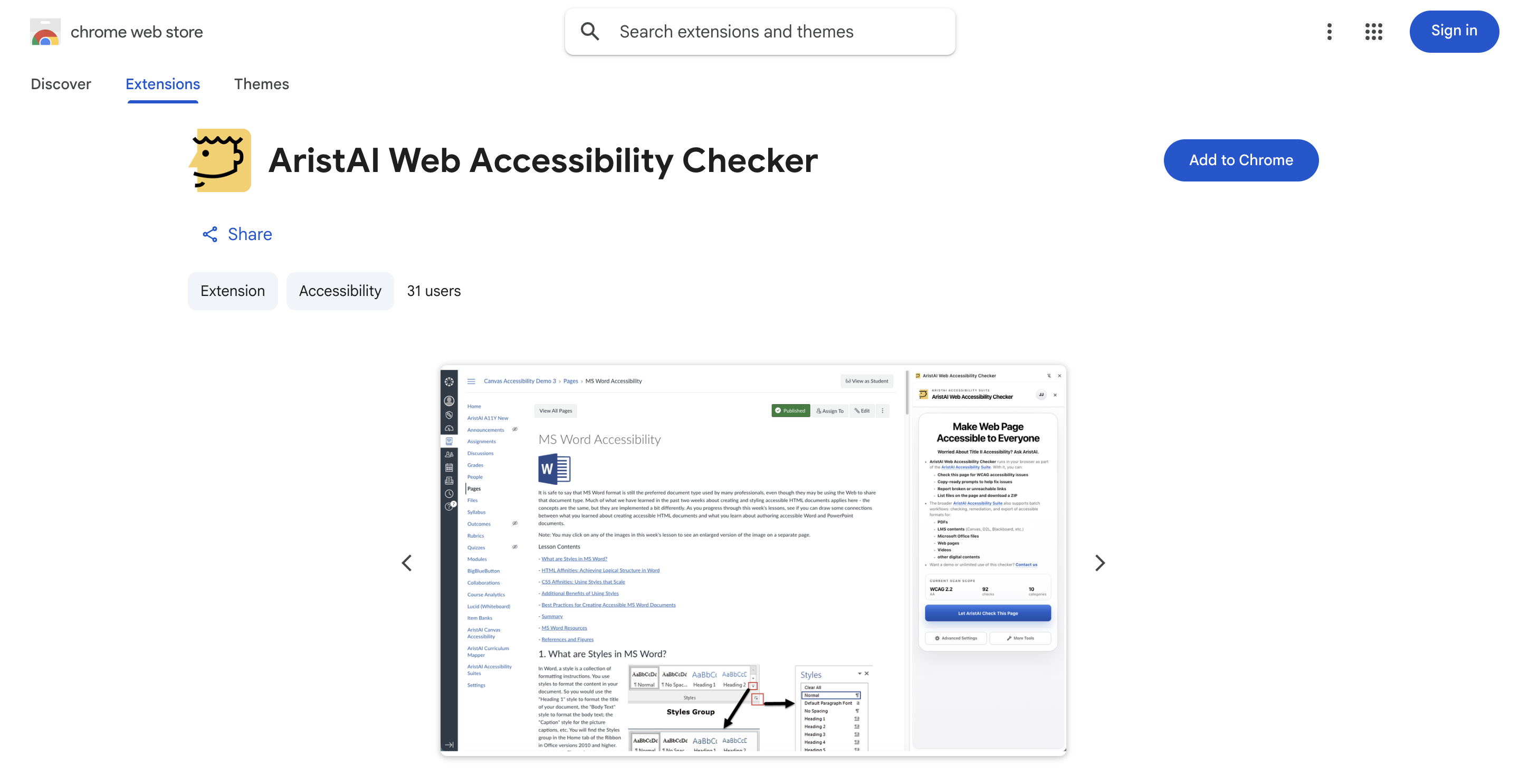
Chrome Web Store listing for AristAI Web Accessibility Checker with an Add to Chrome button in the top-right corner. - Step 2
Click “Add extension” in the confirmation dialog
Chrome asks Add “AristAI Web Accessibility Checker”? Click Add extension to continue.
About the permission shown here: “Read and change all your data on all websites” is Chrome’s standard wording for extensions that work with page content. The checker needs it to scan the page you’re viewing for accessibility issues.
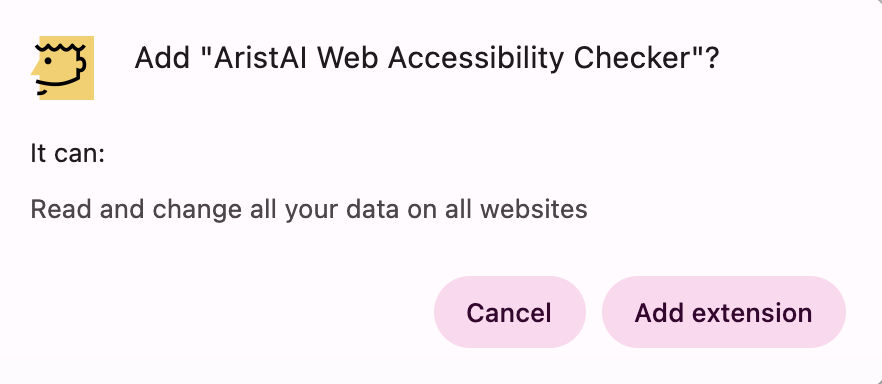
Chrome confirmation dialog asking to add AristAI Web Accessibility Checker, with Cancel and Add extension buttons. - Step 3
Look for the confirmation from Chrome
A message appears near the top-right of the browser: “AristAI Web Accessibility Checker has been added to Chrome.” The extension is installed — two quick clicks left to keep it handy.
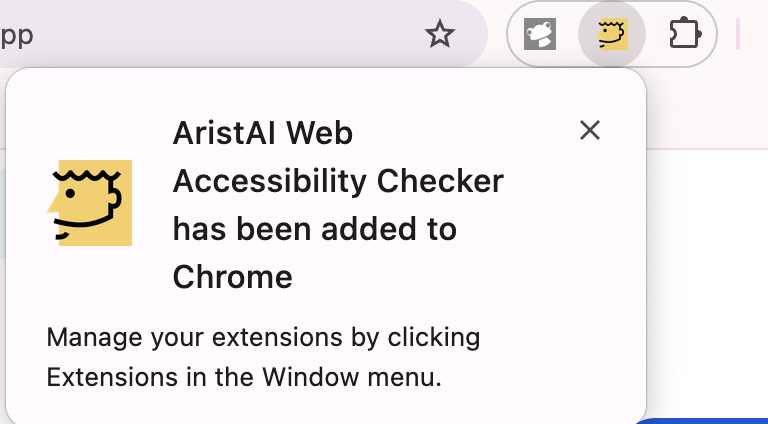
Chrome notification saying AristAI Web Accessibility Checker has been added to Chrome. - Step 4
Open the Extensions menu
Click the puzzle-piece icon in the top-right of the toolbar. The Extensions panel opens and lists AristAI Web Accessibility Checker.
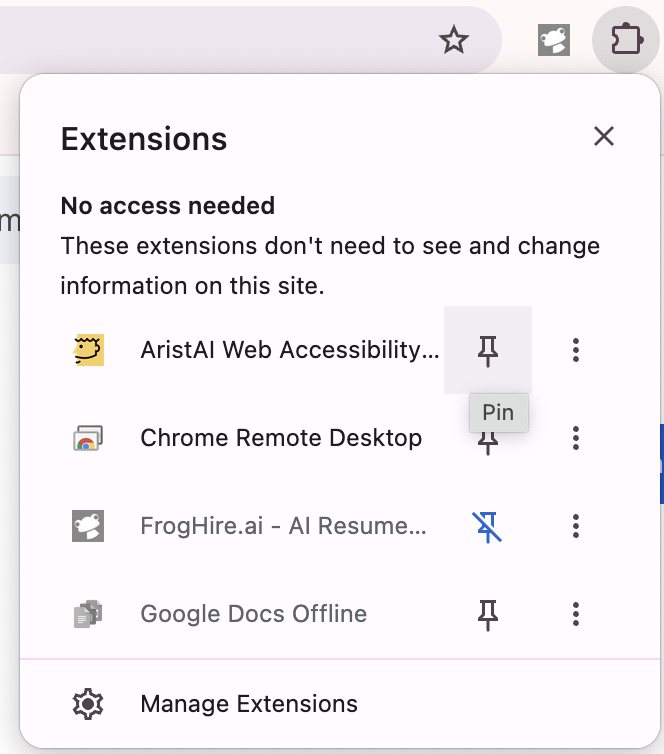
Chrome Extensions panel opened from the puzzle-piece toolbar icon, listing AristAI Web Accessibility Checker. - Step 5
Pin the checker to your toolbar
Click the pin icon next to AristAI Web Accessibility Checker. Its icon stays on your toolbar, one click away on any page. That’s it — you’re set up.
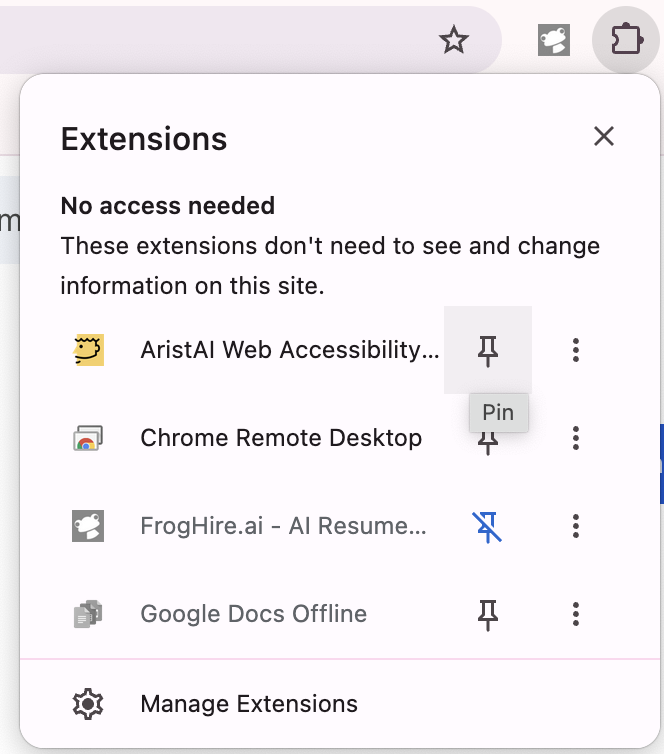
Chrome Extensions panel showing the pin icon highlighted next to AristAI Web Accessibility Checker.
Frequently asked questions
- How much does it cost?
- The extension is listed as free on the Chrome Web Store.
- I installed it but can’t see it in my toolbar.
- Click the puzzle-piece icon in the top-right of Chrome and pin the checker, as shown in steps 4 and 5. Pinned extensions stay visible on the toolbar.