
User Manual
Install the AristAI
Office Add-in
A WCAG accessibility checker for Word and PowerPoint. Find and fix contrast, alt text, links, and more — right inside your document.
Before you start
The add-in works across these versions of Microsoft Office.
- Word 2013 SP1+ · Windows
- Word 2016+ · Mac
- Word on the web
- PowerPoint 2013 SP1+ · Windows
- PowerPoint 2016+ · Mac
- PowerPoint on the web
Installation
Install from the Microsoft Marketplace
Four steps, a couple of minutes. No download required.
- Step 1
Open the Microsoft Marketplace
Go to the Microsoft Marketplace search page (or search “aristai” at marketplace.microsoft.com). You’ll see AristAI Accessibility Remediator for Microsoft Office, listed as Free.
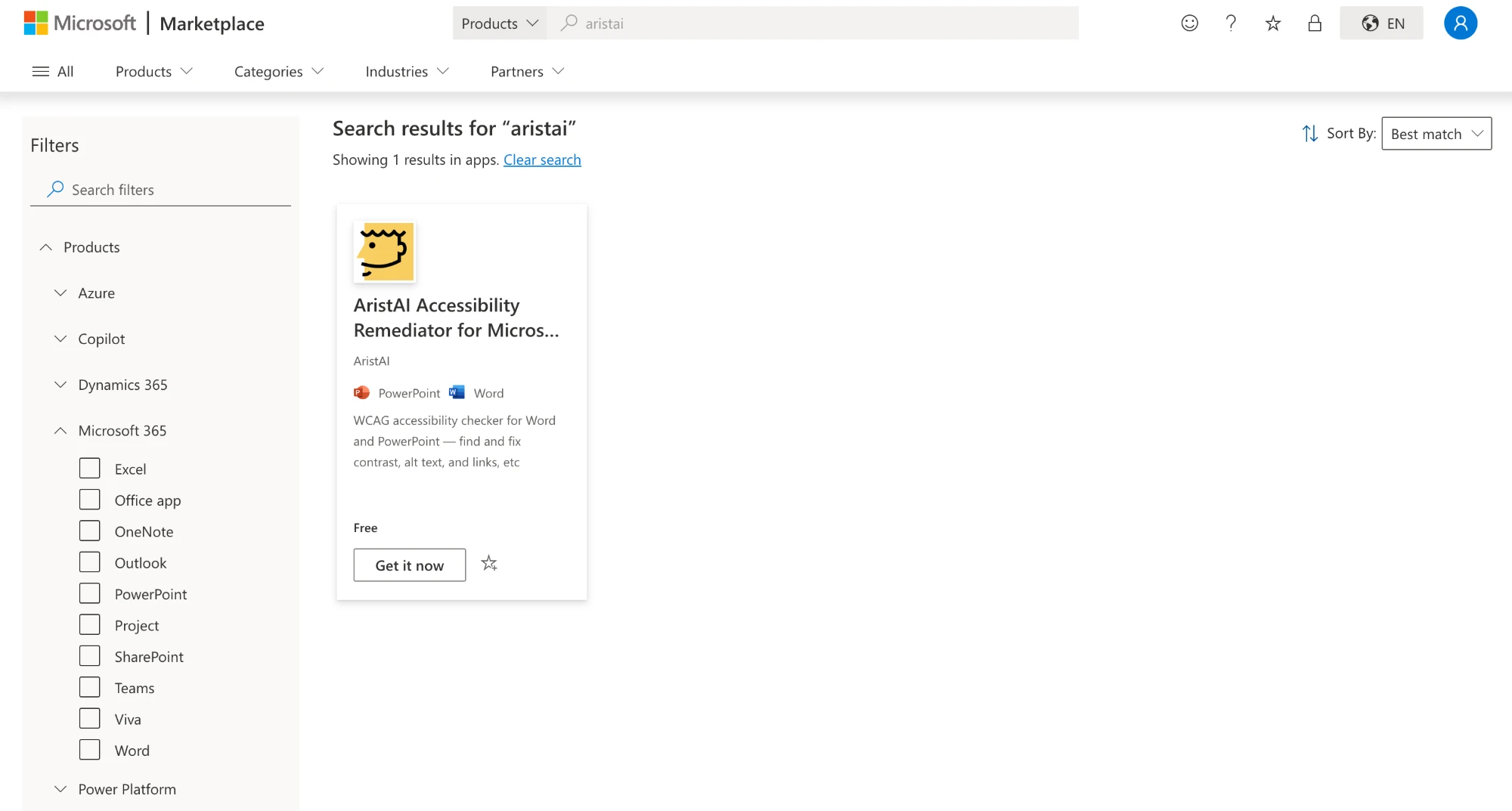
Microsoft Marketplace search results showing the AristAI Accessibility Remediator app card with a Get it now button. - Step 2
Click “Get it now” and confirm your details
Select Get it now on the app card. A “Confirm your details to continue” dialog appears showing the Microsoft account you’re signed in with. Review it, then click Get it now again to continue.
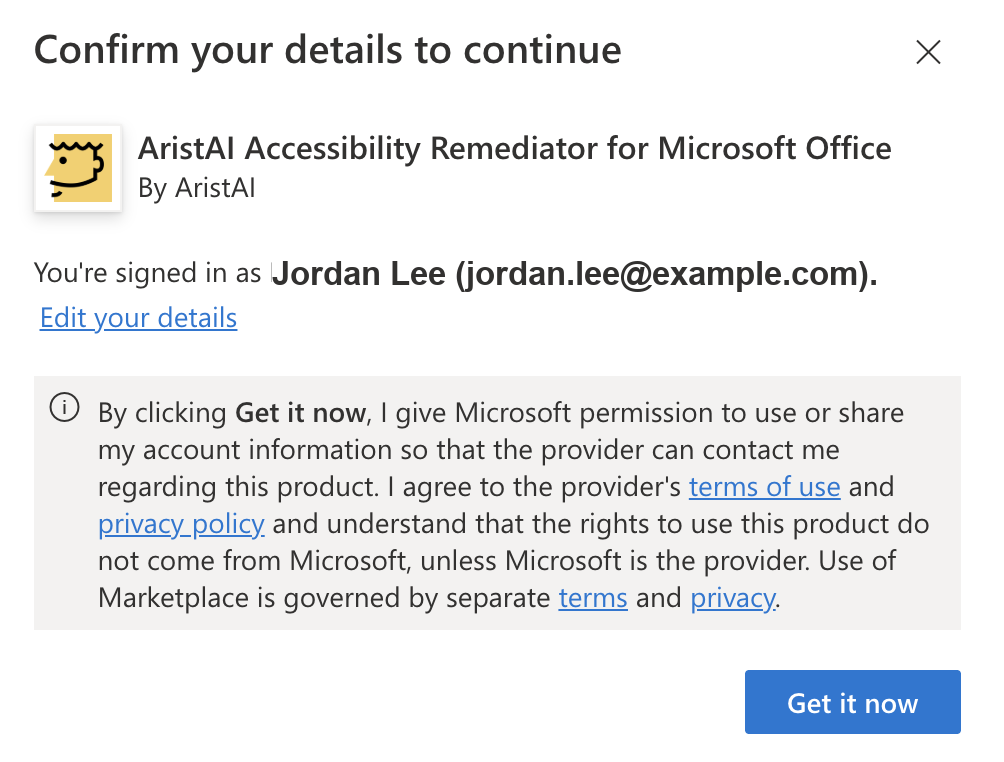
Confirm your details dialog for the AristAI add-in with a Get it now button. - Step 3
Open the add-in in Word or PowerPoint
You’re taken to the Office Store launch page, “Get started with the add-in.” Choose Open in Word or Open in PowerPoint, depending on where you want to use the checker.
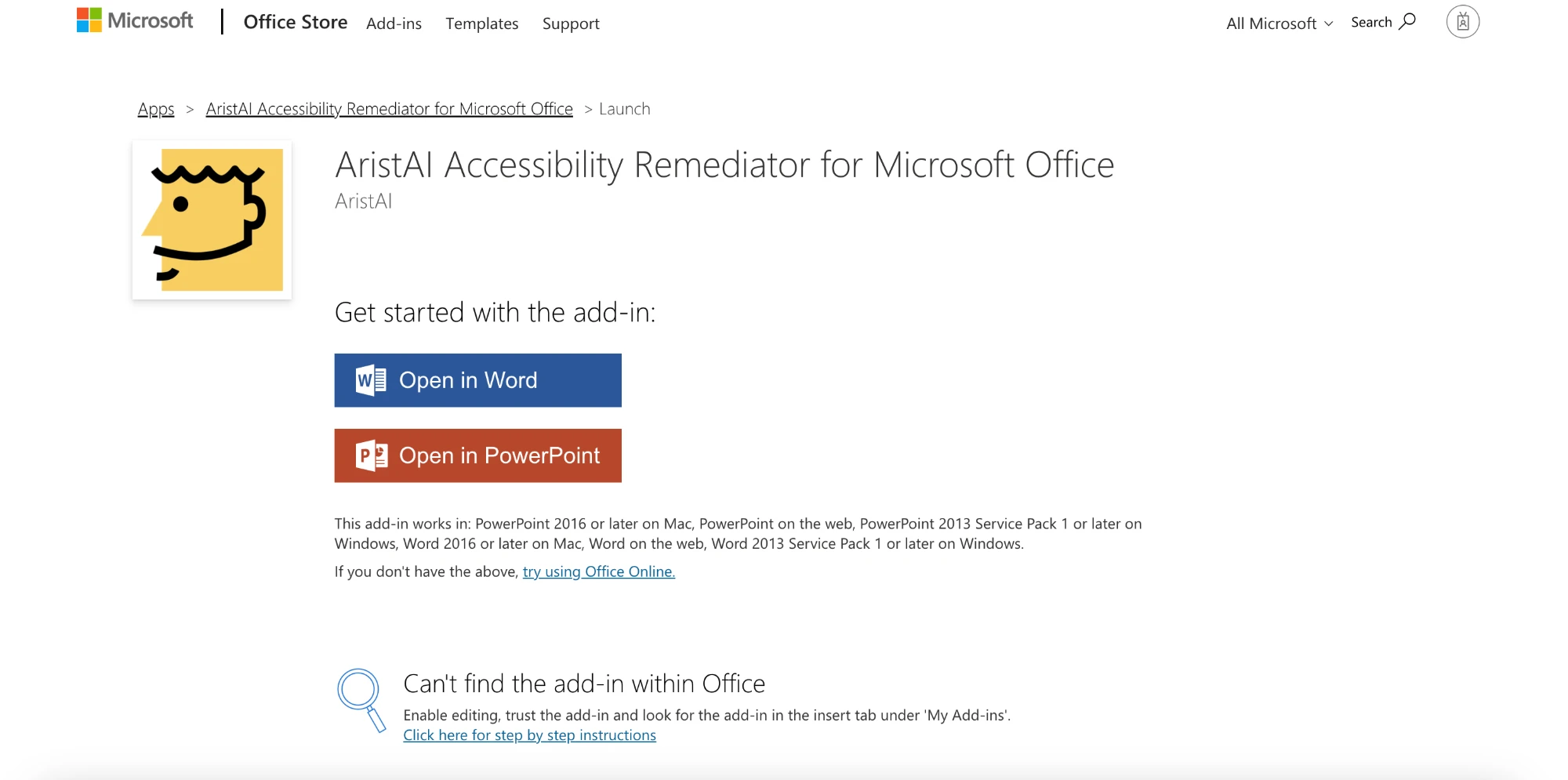
Office Store launch page with Open in Word and Open in PowerPoint buttons. - Step 4
Allow the Office app to open
Your browser may ask “Open Microsoft Word?” (or PowerPoint). Click Open. The Office app launches with the AristAI add-in loaded and ready to use.
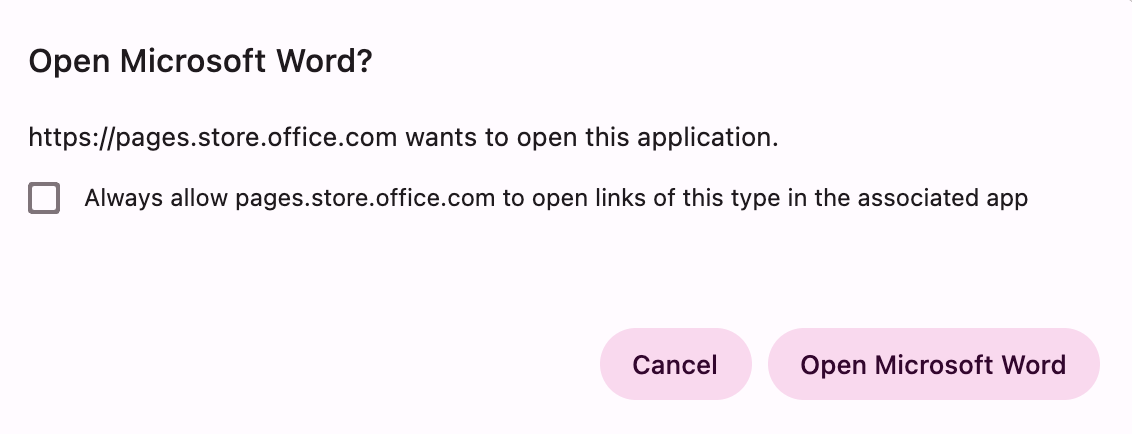
Browser dialog asking to open Microsoft Word, with an Open Microsoft Word button.
Troubleshooting
Can’t find the add-in inside Office?
Enable editing and trust the add-in, then open the Insert tab and look under My Add-ins. Closing and reopening the document usually makes it appear.
Add-in blocked by your organization?
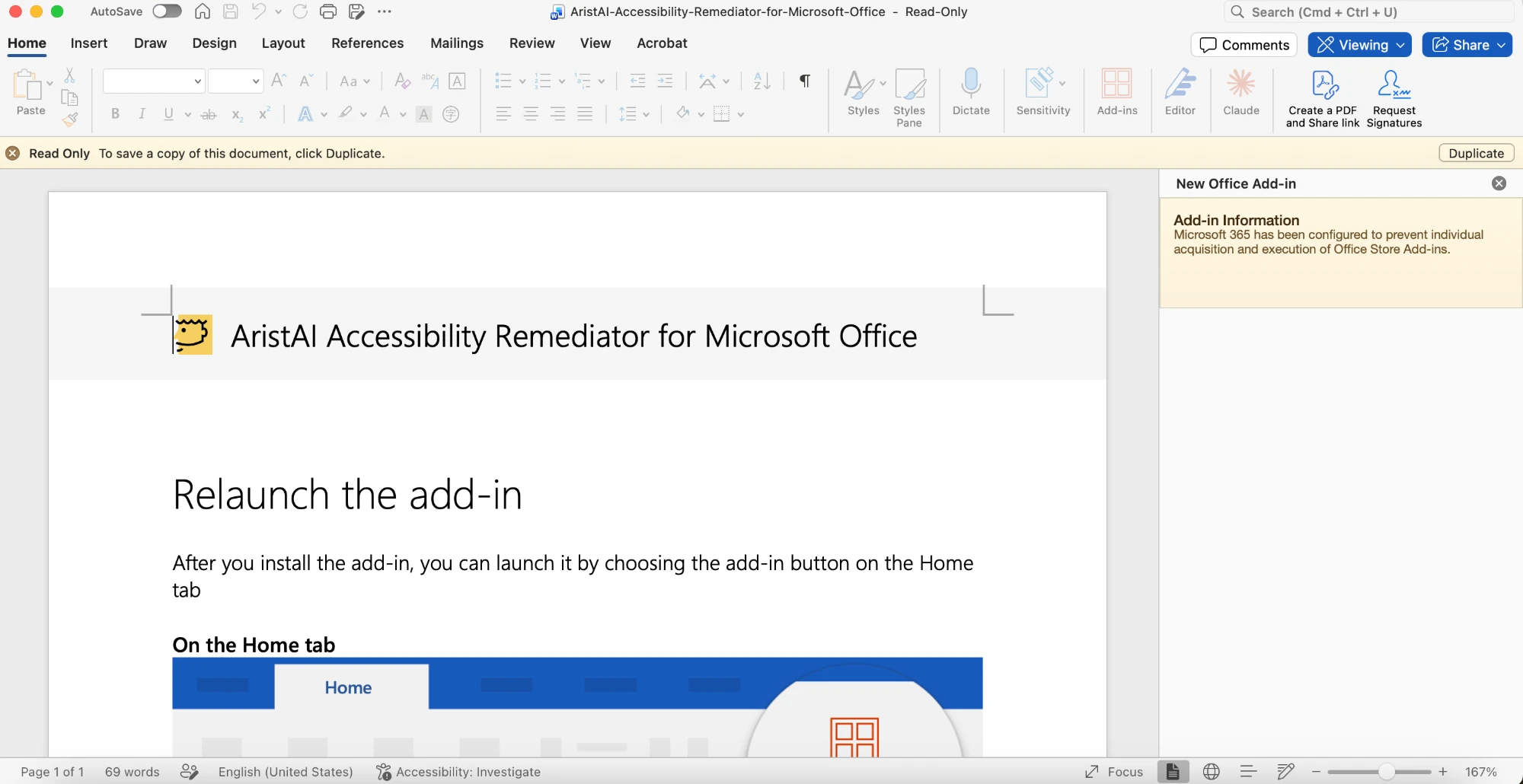
After you click Open, if the add-in panel in Word or PowerPoint shows a message like “Microsoft 365 has been configured to prevent individual acquisition and execution of Office Store Add-ins,” your organization has disabled Office Store add-ins. This is common with school and enterprise accounts, which may be unable to install the add-in directly.
Contact your Microsoft 365 / account administrator and ask them to approve or deploy “AristAI Accessibility Remediator for Microsoft Office” for your account.
Frequently asked questions
- How much does it cost?
- The add-in is listed as Free on the Microsoft Marketplace.
- Which apps does it work with?
- Microsoft Word and PowerPoint on Windows, Mac, and the web (see the requirements above).
- I installed it but can’t find it in Office.
- Enable editing and trust the add-in, then look for it on the Insert tab under “My Add-ins.” Reopening the document usually surfaces it.